
 | United States
 Åland Islands
 Albania
 Andorra
 Australia
 Austria
 Belarus
 Belgium
 Bosnia & Herzegovina
 Bulgaria
 Canada
 Christmas Island
 Cocos (Keeling) Islands
 Cook Islands
 Croatia
 Czechia
 Denmark
 Estonia
 Faroe Islands
 Fiji
 Finland
 France
 French Polynesia
 Germany
 Gibraltar
 Greece
 Guernsey
 Hungary
 Iceland
 Ireland
 Isle of Man
 Italy
 Japan
 Jersey
 Kiribati
 Kosovo
 Latvia
 Liechtenstein
 Lithuania
 Luxembourg
 Malta
 Moldova
 Monaco
 Montenegro
 Nauru
 Netherlands
 New Caledonia
 New Zealand
 Niue
 Norfolk Island
 North Macedonia
 Norway
 Papua New Guinea
 Pitcairn Islands
 Poland
 Portugal
 Romania
 Russia
 Samoa
 San Marino
 Serbia
 Slovakia
 Slovenia
 Solomon Islands
 Spain
 Svalbard & Jan Mayen
 Sweden
 Switzerland
 Tokelau
 Tonga
 Tuvalu
 U.S. Outlying Islands
 Ukraine
 United KingdomUnited States
 Vanuatu
 Vatican City
 Wallis & Futuna

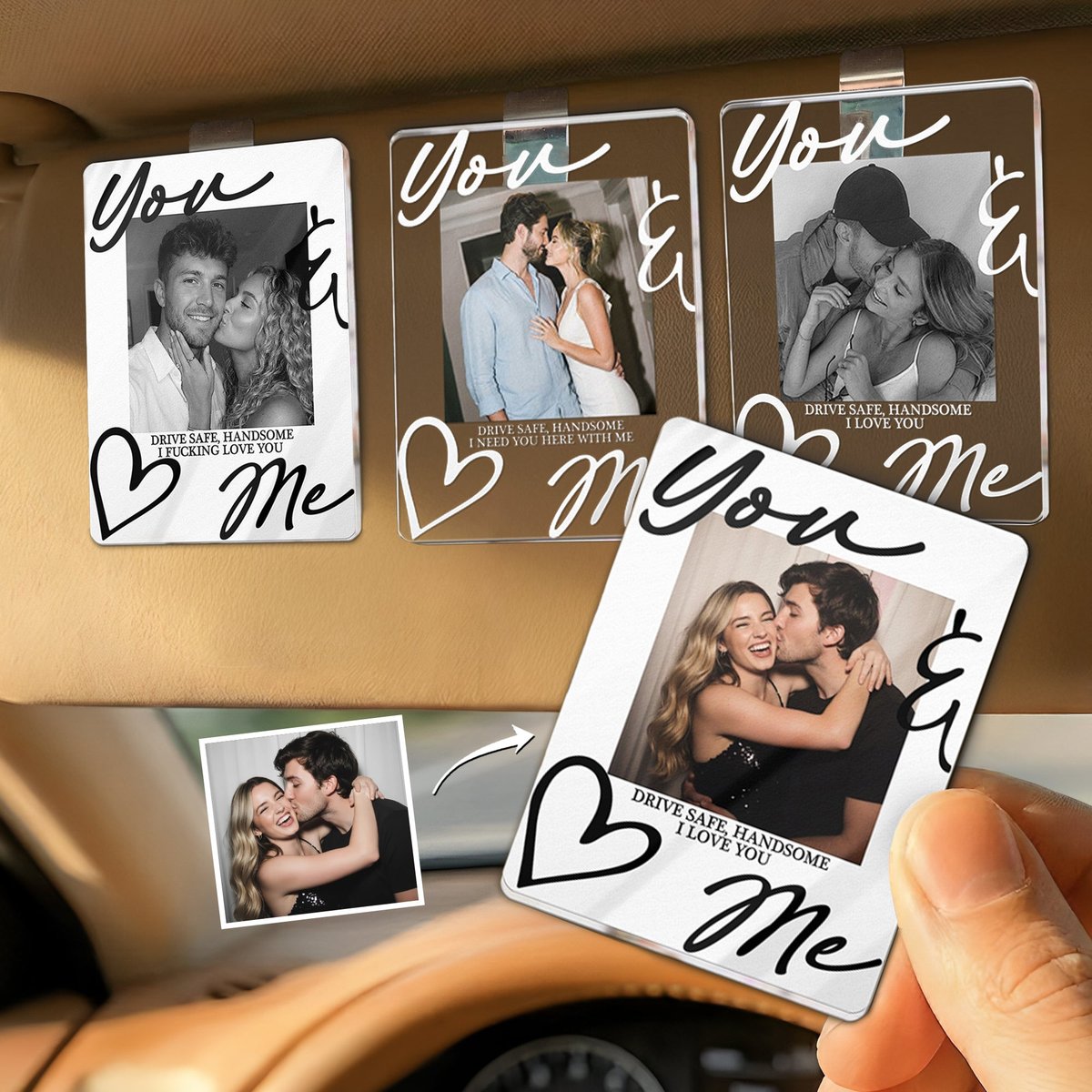
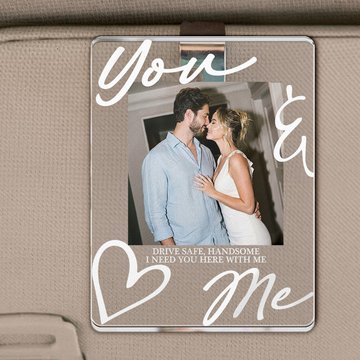
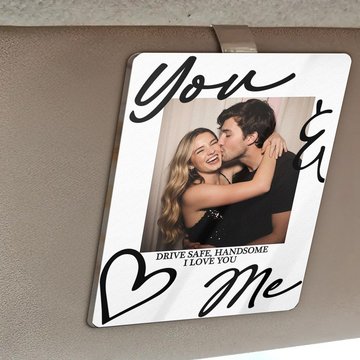
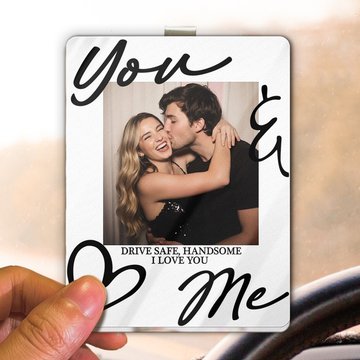
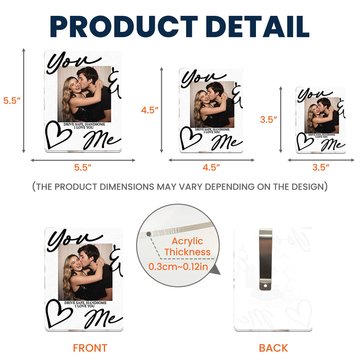
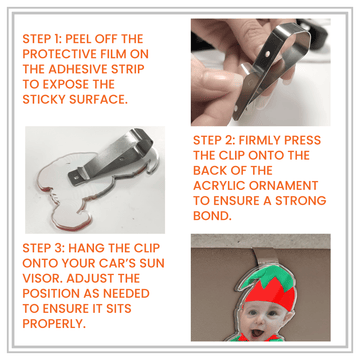
You & Me Drive Safe I Love You - Personalized Acrylic Photo Visor Clip
Buy More, Save More
- Buy 2Get 10% Off
- Buy 3Get 15% Off
- Buy 4+Get 20% Off
Size: 3.5 inches
Buy More Save More (Different Designs): 1 PC
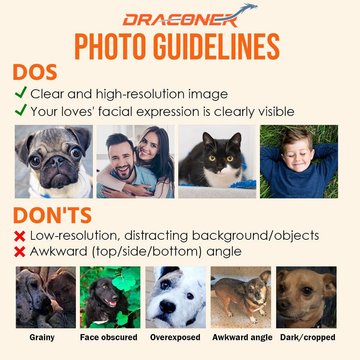
1 - CROP the image before uploading that will get you a better result. Photo with large pixels and a high resolution is highly recommended.
2 - Click the SELECT IMAGE button to upload your photo or re-upload another one.
3 - Adjust the photo position (change, rotate, zoom out/in, move up/down/right/left) at the function buttons below the preview.
4 - Please wait 20 - 30 seconds if using the Removed Background function.
1 - CROP the image before uploading that will get you a better result. Photo with large pixels and a high resolution is highly recommended.
2 - Click the SELECT IMAGE button to upload your photo or re-upload another one.
3 - Adjust the photo position (change, rotate, zoom out/in, move up/down/right/left) at the function buttons below the preview.
4 - Please wait 20 - 30 seconds if using the Removed Background function.
1 - CROP the image before uploading that will get you a better result. Photo with large pixels and a high resolution is highly recommended.
2 - Click the SELECT IMAGE button to upload your photo or re-upload another one.
3 - Adjust the photo position (change, rotate, zoom out/in, move up/down/right/left) at the function buttons below the preview.
4 - Please wait 20 - 30 seconds if using the Removed Background function.
1 - CROP the image before uploading that will get you a better result. Photo with large pixels and a high resolution is highly recommended.
2 - Click the SELECT IMAGE button to upload your photo or re-upload another one.
3 - Adjust the photo position (change, rotate, zoom out/in, move up/down/right/left) at the function buttons below the preview.
4 - Please wait 20 - 30 seconds if using the Removed Background function.
1 - CROP the image before uploading that will get you a better result. Photo with large pixels and a high resolution is highly recommended.
2 - Click the SELECT IMAGE button to upload your photo or re-upload another one.
3 - Adjust the photo position (change, rotate, zoom out/in, move up/down/right/left) at the function buttons below the preview.
4 - Please wait 20 - 30 seconds if using the Removed Background function.
1 - CROP the image before uploading that will get you a better result. Photo with large pixels and a high resolution is highly recommended.
2 - Click the SELECT IMAGE button to upload your photo or re-upload another one.
3 - Adjust the photo position (change, rotate, zoom out/in, move up/down/right/left) at the function buttons below the preview.
4 - Please wait 20 - 30 seconds if using the Removed Background function.
1 - CROP the image before uploading that will get you a better result. Photo with large pixels and a high resolution is highly recommended.
2 - Click the SELECT IMAGE button to upload your photo or re-upload another one.
3 - Adjust the photo position (change, rotate, zoom out/in, move up/down/right/left) at the function buttons below the preview.
4 - Please wait 20 - 30 seconds if using the Removed Background function.
Description
Shipping & Returns
Return & Warranty
Personalization
Share to